Running Metasploitable3 on Proxmox: A Step-by-Step Guide
Introduction
Metasploitable3 is an intentionally vulnerable virtual machine designed for security training and penetration testing practice. While the official build process uses Vagrant and VirtualBox, many security professionals prefer running their lab environments on Proxmox for better resource management and isolation.
This guide shows you how to get Metasploitable3 running on Proxmox without installing VirtualBox — perfect for headless servers or systems where VirtualBox isn’t compatible.
Why This Approach?
The traditional Metasploitable3 setup requires:
- VirtualBox (often conflicts with other hypervisors)
- Vagrant for building
- Time-consuming build process (30–60 minutes)
Our method:
- ✅ No VirtualBox installation needed
- ✅ Works on any Linux system with Vagrant
- ✅ Downloads pre-built images (faster)
- ✅ Direct import to Proxmox
Prerequisites
- A Linux machine for downloading the images (doesn’t need to be Proxmox)
- Proxmox VE server with available storage
- SSH access to your Proxmox server
- ~2.5 GB disk space for the download
- Basic familiarity with command line
Step 1: Install Vagrant
On your Linux machine (I used Debian testing, but this works on Ubuntu, Fedora, etc.):
# Download Vagrant
wget https://releases.hashicorp.com/vagrant/2.4.1/vagrant_2.4.1-1_amd64.deb# Install it
sudo dpkg -i vagrant_2.4.1-1_amd64.deb# Fix any dependency issues
sudo apt --fix-broken install# Verify installation
vagrant --version
Step 2: Download the Metasploitable3 Box
# Create a workspace
mkdir ~/metasploitable3-workspace
cd ~/metasploitable3-workspace# Download the pre-built Ubuntu box
vagrant box add rapid7/metasploitable3-ub1404
When prompted, select option 1 (virtualbox). Don’t worry — you don’t need VirtualBox installed; we just want to download the box file.
Note: There’s also a Windows Server 2008 version available (rapid7/metasploitable3-win2k8), but the Ubuntu version is more commonly used and easier to work with.
Step 3: Extract the VM Files
The downloaded box contains the VMDK and OVF files we need:
# Navigate to the downloaded box
cd ~/.vagrant.d/boxes/rapid7-VAGRANTSLASH-metasploitable3-ub1404# Check the version (yours may differ)
ls -la# Go into the virtualbox directory
cd 0.1.12-weekly/virtualbox # Version number may vary# List the files
ls -la
You should see:
box.ovf- VM configuration filemetasploitable3-ub1404-disk001.vmdk- Virtual hard disk (~2.1 GB)Vagrantfile- Vagrant configuration (not needed)metadata.json- Box metadata (not needed)
Step 4: Transfer Files to Proxmox
Copy the OVF and VMDK files to your Proxmox server:
# Replace <proxmox-ip> with your Proxmox server's IP address
scp box.ovf metasploitable3-ub1404-disk001.vmdk root@<proxmox-ip>:/tmp/
Example:
scp box.ovf metasploitable3-ub1404-disk001.vmdk root@192.168.1.100:/tmp/
Step 5: Import to Proxmox
SSH into your Proxmox server:
ssh root@<proxmox-ip>
Navigate to the temp directory and import:
cd /tmp# Choose an available VM ID (check your Proxmox web UI)
# Replace <vmid> with something like 100, 101, 102, etc.# Import the OVF configuration
qm importovf <vmid> box.ovf local-lvm# Import and convert the disk to qcow2
qm importdisk <vmid> metasploitable3-ub1404-disk001.vmdk local-lvm -format qcow2
Example with VM ID 100:
qm importovf 100 box.ovf local-lvm
qm importdisk 100 metasploitable3-ub1404-disk001.vmdk local-lvm -format qcow2
Note: If you’re using a different storage pool (not local-lvm), replace it with your storage name.
Step 6: Configure the VM (Critical!)
Open your Proxmox web interface and navigate to your new VM. These configuration changes are essential for the VM to boot properly:
1. Attach the Imported Disk
- Go to Hardware tab
- You’ll see “Unused Disk 0”
- Double-click it (or select and click Edit)
- Click Add to attach it
2. Change SCSI Controller (CRITICAL!)
This is the most important step — VirtIO SCSI will cause boot failures:
- Select SCSI Controller
- Click Edit
- Change from “VirtIO SCSI” to “LSI 53C895A”
- Click OK
Without this change, you’ll get boot errors like “dev/mapper/metasploitable-root doesn’t exist”
3. Set Boot Order
- Go to Options tab
- Select Boot Order
- Click Edit
- Enable only the SCSI disk
- Move it to first position
- Click OK
4. Configure Network (Security Important!)
⚠️ WARNING: Metasploitable3 is intentionally vulnerable. NEVER expose it to the internet or your production network.
- Go to Hardware tab
- Select Network Device
- Click Edit
- Options:
- Use an isolated internal network/VLAN
- Or create a dedicated “pentest” bridge
- Or set to “No network device” if you’ll only access via console
5. Optional: Adjust Resources
The default settings are usually fine, but you can adjust:
- Memory: 2048 MB (2 GB) is recommended
- Processors: 2 cores is plenty
- Display: Default (keep it)
Step 7: Start the VM
- Click Start in the Proxmox interface
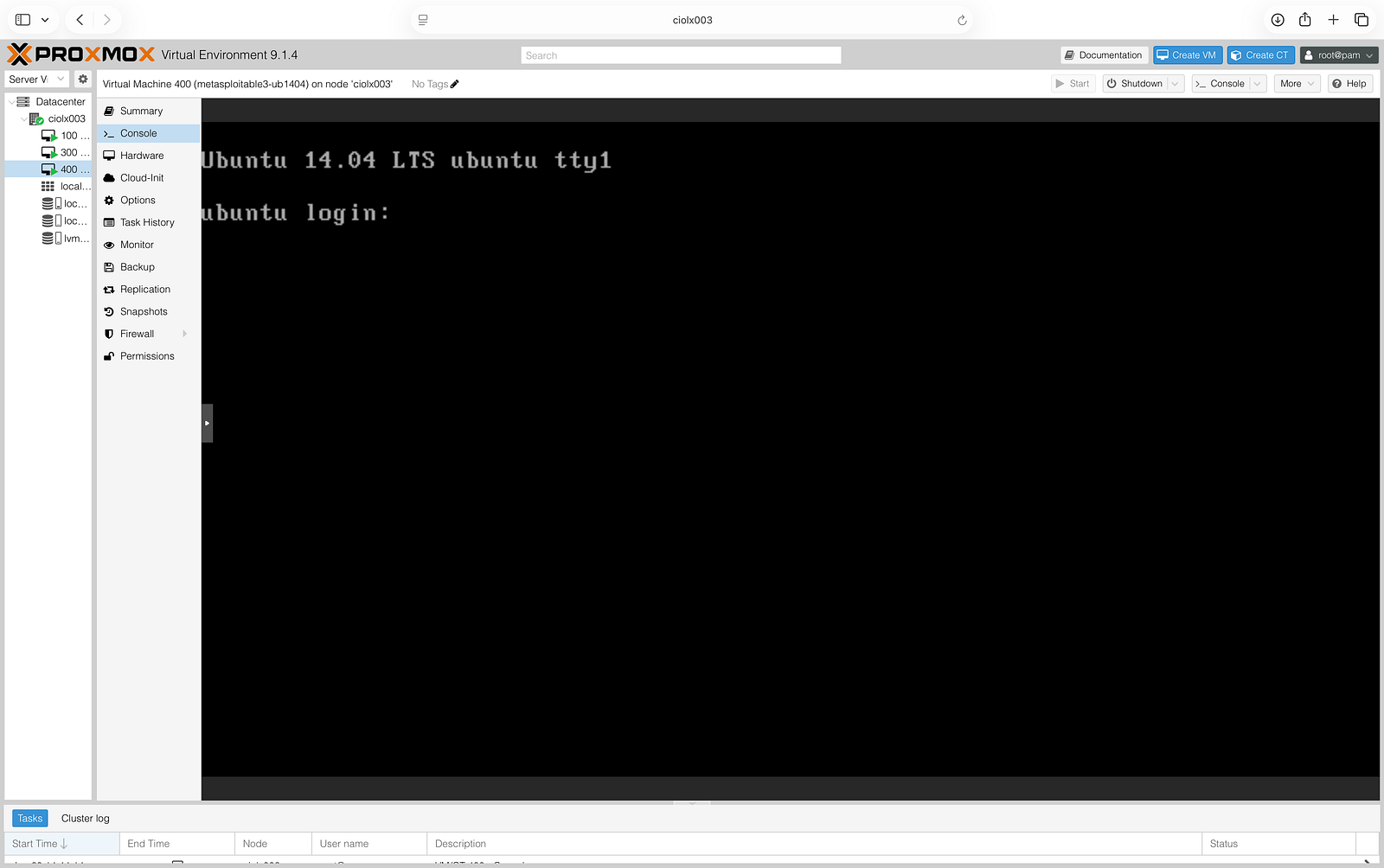
- Open the Console
- Watch it boot (takes 30–60 seconds)
Step 8: Login
Default credentials:
- Username:
vagrant - Password:
vagrant
Once logged in, you can verify the system:
# Check the hostname
hostname# Check IP address
ip addr show# List vulnerable services
sudo netstat -tulpn
Security Best Practices
- Network Isolation: Run Metasploitable3 on an isolated network segment
- Firewall Rules: Block any outbound internet access
- Snapshot Before Use: Take a Proxmox snapshot before each testing session
- Regular Cleanup: Delete when not in use
- Access Control: Limit who can access your Proxmox server
- No Sensitive Data: Never store real data on Metasploitable3
Troubleshooting
VM Won’t Boot / Gets Stuck
Problem: Boot hangs or shows “dev/mapper/metasploitable-root doesn’t exist”
Solution: You forgot to change the SCSI controller! Go back to Step 6.2 and change it to LSI 53C895A.
Can’t Connect to Network
Problem: VM boots but has no network connectivity
Solution:
- Check that network device is properly configured
- Verify bridge/VLAN settings in Proxmox
- Inside the VM, check:
ip addr show
Import Fails with Storage Error
Problem: qm importovf or qm importdisk fails with storage errors
Solution:
- Verify you have enough free space:
pvesm status - Check storage name is correct (might not be
local-lvm) - Try using a different storage pool
Slow Performance
Problem: VM is sluggish or unresponsive
Solution:
- Increase RAM to 2–4 GB
- Add another CPU core
- Ensure Proxmox host isn’t overloaded
What’s Next?
Now that you have Metasploitable3 running, you can:
- Practice with Metasploit Framework
- Test Nmap scanning techniques
- Explore web application vulnerabilities
- Practice privilege escalation
- Learn exploit development
Popular vulnerable services in Metasploitable3:
- UnrealIRCd (backdoor)
- ProFTPD (various exploits)
- Samba/SMB (multiple vulnerabilities)
- Apache/PHP (web vulnerabilities)
- MySQL (weak credentials)
- Docker (privilege escalation)
Getting the Windows Version
Want the Windows Server 2008 version too? Follow the same process but use:
vagrant box add rapid7/metasploitable3-win2k8
The Windows version has different vulnerabilities focused on Windows-specific exploits, Active Directory attacks, and Windows services.
Cleanup
When you’re done with the files:
# On your Linux download machine
rm -rf ~/metasploitable3-workspace
vagrant box remove rapid7/metasploitable3-ub1404# On Proxmox server
rm /tmp/box.ovf /tmp/metasploitable3-ub1404-disk001.vmdk
Alternative: Docker Approach
If you only need the Ubuntu version and prefer containers, there’s a community Docker image:
bashdocker pull kirscht/metasploitable3-ub1404
However, the Proxmox VM approach gives you:
- Full OS access
- Better network isolation
- Snapshot/restore capabilities
- Both Windows and Linux options
Conclusion
Running Metasploitable3 on Proxmox gives you a professional penetration testing lab environment without the overhead of VirtualBox. By downloading the pre-built Vagrant boxes and importing them directly, you skip the time-consuming build process and get straight to learning.
Remember: This is a deliberately vulnerable system. Always keep it isolated from production networks and the internet!